On the Pro plan, your newsletter can come from an address on your own domain (for example news@example.com). On the Free plan, issues are sent from handle@newsletterready.com.
| Free plan | Pro plan (own domain) | |
|---|---|---|
| From address | maplestreet@newsletterready.com | news@example.com, for example |
| Email authentication | Already done on our domain | Done on your domain (add the three DNS records below) |
| Sending reputation | Shared with other senders | Your domain's own |
What you need
- Your own domain (for example example.com)
- Access to change its DNS settings (a login for GoDaddy, Namecheap, Cloudflare or wherever your domain is managed)
If you do not manage DNS yourself, you can send the request to your web developer or IT contact straight from Settings (see "If someone else manages your DNS" in step 3).
1. Add your domain
- On the Settings tab, open "Send from your own domain (Pro)".
- Enter your domain under "Sending domain" (for example example.com).
- Enter the part before the @ under "From address" (for example news or hello).
- Press "Add domain".
2. Check the three records shown
A table of DNS records appears.
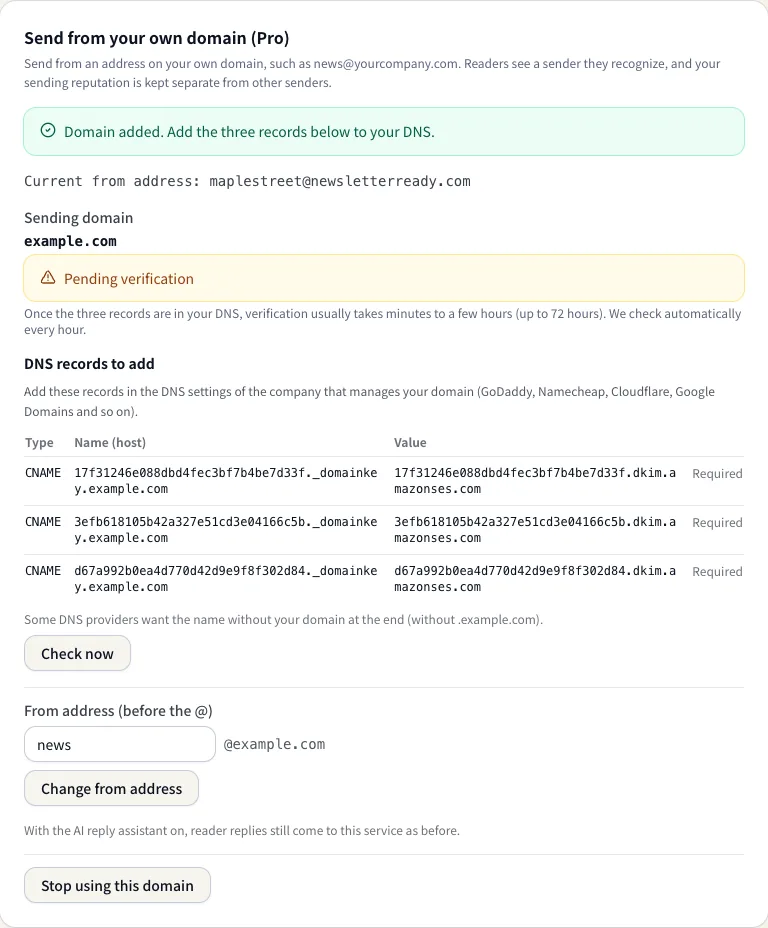
| Type | Name (host) | Value |
|---|---|---|
| CNAME | (string)._domainkey.yourdomain | (string).dkim.amazonses.com |
There are three of these. The strings are different for every domain, so always copy exactly what your screen shows. Click a name or value to select all of it.
If your domain has no DMARC record yet, a fourth row appears: "TXT _dmarc.yourdomain v=DMARC1; p=none;". Gmail and Yahoo require DMARC for bulk senders, so we recommend adding it too.
3. Add them to your DNS
In the DNS settings of the company that manages your domain, add the three CNAME records.
- Some DNS providers want the name without your domain at the end: enter only "(string)._domainkey".
- Some ask for a trailing "." at the end of the value. Follow your provider's instructions.
- Keep your existing MX (incoming mail) and SPF records. You do not need to remove anything.
If someone else manages your DNS
If a web agency or IT person manages your DNS, use "Ask whoever manages your DNS" in Settings (shown while the domain is pending).
- Copy the request: press "Copy" next to "Request text" to copy a ready-made message with a greeting, the records to add and the notes. Paste it into your usual email or chat.
- Email it directly: enter their address under "Their email address" and press "Email the request". They get the same message by email, and their reply comes to your email address. You get a copy too (up to 5 per day).
Once they add the records, verification happens automatically.
4. Wait for verification
Once the records are in place, the status usually changes to "Verified · sending from this domain" within minutes to a few hours (up to 72 hours). We check automatically every hour. To check right away, press "Check now".
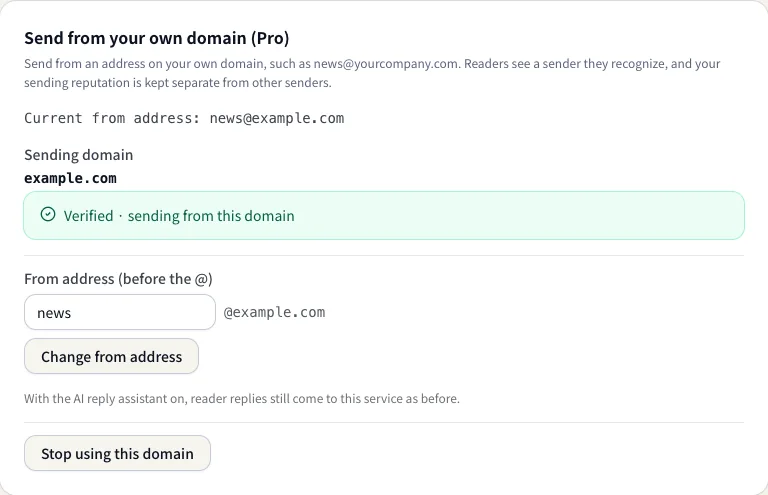
After verification, issues, welcome emails, confirmation emails, test sends and replies all go out from your own address. Use "Send me a test" to confirm the new from address.
Questions
| Question | Answer |
|---|---|
| It stays pending | Check the names and values for typos, extra spaces or a stray ".". DNS changes can take time to spread |
| Can I send while it is pending? | Yes. Until verified, issues go out from handle@newsletterready.com as before |
| Where do reader replies go? | With the AI reply assistant on, they still come to this service. With it off, they go to the reply-to address in Settings |
| I want to change the part before the @ | Change it in the same section and press "Change from address". The domain stays verified |
| What if I go back to the Free plan? | Sending switches back to handle@newsletterready.com automatically |
| How do I stop using my domain? | Press "Stop using this domain". You can keep or delete the DNS records |
| Can I use someone else's domain? | No. Only someone who can change a domain's DNS can verify it |
Related: check your SPF, DKIM and DMARC setup with the email domain checker.