1. Draft an issue
On the Issues tab, press "Draft an issue" under "Draft an issue with AI". The draft is ready in about a minute.
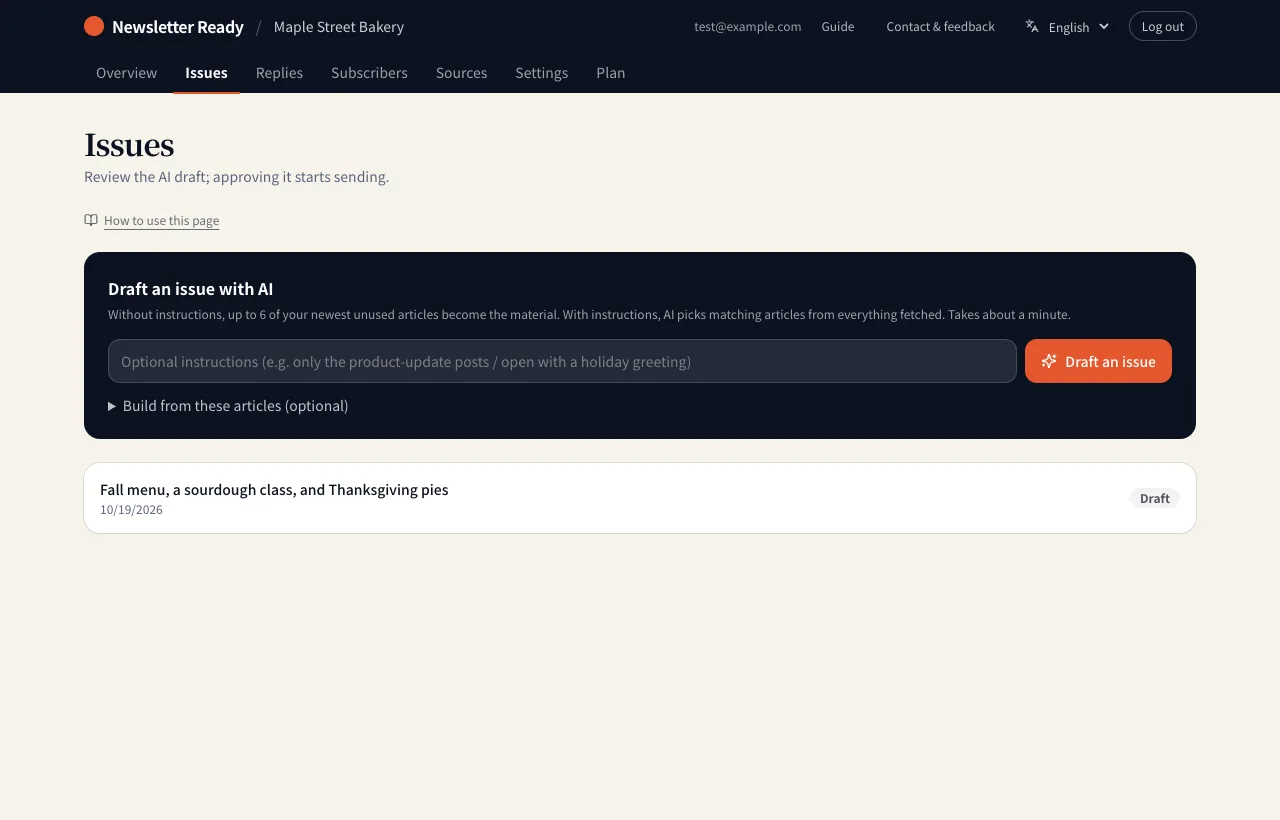
| How | When to use it |
|---|---|
| Press it with the box empty | Up to 6 of your newest articles not yet used in an issue become the material |
| Write instructions first | For example "only the product-update posts" or "open with a holiday greeting". AI picks matching articles from everything fetched |
| Paste URLs under "Build from these articles (optional)" | Only the pages you list (up to 5) are used, including articles not fetched yet |
AI writes only from what your source articles say. It does not add numbers or names that are not in them.
2. Review and edit
Open the draft to see the content on the left and a preview of what readers receive on the right.
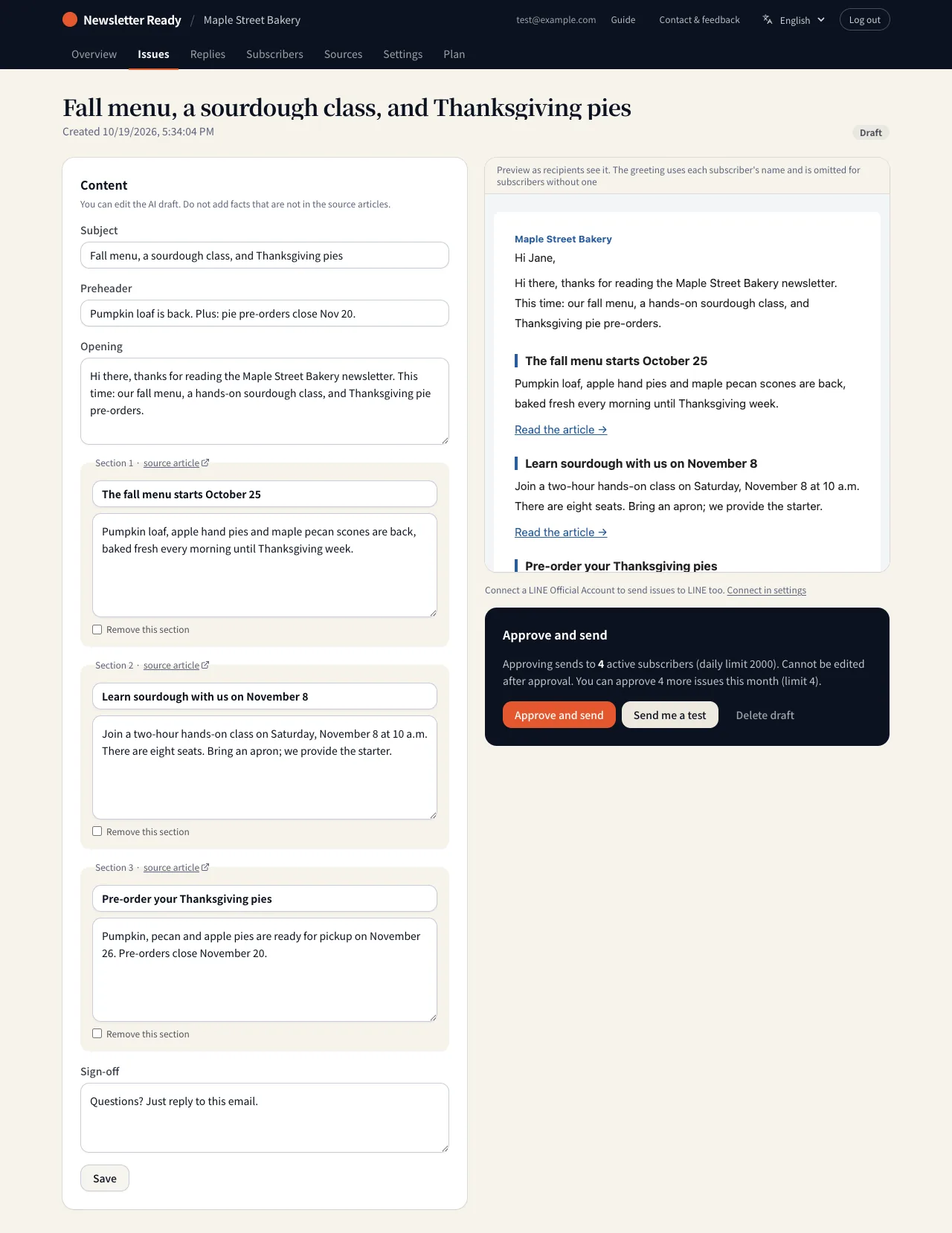
- The subject, preheader, opening, each section and the sign-off can all be edited. Press "Save" when you are done.
- Each section links to its "source article" so you can check it.
- Tick "Remove this section" to leave a section out.
- The greeting uses each subscriber's name, and is omitted for subscribers without one.
3. Send yourself a test
Press "Send me a test" and the issue arrives at the address you log in with, with [Test] in the subject. It is worth checking how it looks on your phone.
4. Approve and send
Press "Approve and send" and sending to every active subscriber begins (emails go out automatically every minute). The issue cannot be edited after approval.
- Anything over your daily sending limit goes out the next day.
- The Free plan includes 4 issues a month.
When a draft cannot be created
| Message | What to do |
|---|---|
| There are no articles to work from | Add a source first |
| No fetched article matches those instructions | Write instructions that fit the articles you have fetched |
| Today's draft limit is reached | The limit is 10 drafts a day. Try again tomorrow |
| Required before sending | Fill in the fields marked with a red * in Settings |